- Write a RESTful API with Ballerina
- Write a gRPC service with Ballerina
- Write a GraphQL API with Ballerina
- Work with data using queries in Ballerina
- Build a data service in Ballerina
- Build a Change Data Capture (CDC) service in Ballerina
- Work with Large Language Models (LLMs) using natural expressions
- Deploy Ballerina on Kubernetes
- Manage data persistence with bal persist
- Create your first connector with Ballerina
- Write a workflow with Ballerina
- Write a workflow with a human task
- Handle errors and replay failed activities in workflows
Users can observe Ballerina programs with Moesif, which is a powerful API analytics and monetization platform that helps businesses understand, debug, and monetize their API usage. It provides comprehensive API observability with real-time monitoring, behavioral analytics, and AI-powered insights to track customer API adoption and usage patterns.
The sample shop service will be used in this guide.
Follow the steps given below to view Ballerina metrics, traces and logs in Moesif.
Step 1 - Create a Moesif account and get an application ID
After you log into Moesif Portal, get your Moesif Application ID during the onboarding steps.
Application ID can be accessed by following the below steps from Moesif Portal after logging in.
Go to Account -> Settings -> API keys -> Collector Application ID.
Step 2 - Set up Ballerina application for publishing traces and metrics to Moesif
-
Create the sample shop service.
-
Open the
main.balfile in the Ballerina package and add the following imports.import ballerinax/moesif as _; -
Create the
Config.tomlfile in the package directory to set the runtime configurations. -
To enable the extension and publish traces to Moesif, add the following to the
Config.toml.[ballerina.observe] tracingEnabled=true tracingProvider="moesif" [ballerinax.moesif] applicationId = "<MOESIF_APPLICATION_ID>" # Mandatory Configuration. reporterBaseUrl = "https://api.moesif.net" # Optional Configuration. Default value is 'https://api.moesif.net' tracingReporterFlushInterval = 1000 # Optional Configuration. Default value is 1000 tracingReporterBufferSize = 10000 # Optional Configuration. Default value is 10000 isTraceLoggingEnabled = false # Optional Configuration. Default value is false isPayloadLoggingEnabled = false # Optional Configuration. Default value is false -
To enable metrics publishing, add the following to the
Config.toml.[ballerina.observe] metricsEnabled=true metricsReporter="moesif" [ballerinax.moesif] applicationId = "<MOESIF_APPLICATION_ID>" # Mandatory Configuration. reporterBaseUrl = "https://api.moesif.net" # Optional Configuration. Default value is 'https://api.moesif.net' metricsReporterFlushInterval = 15000 # Optional Configuration. Default value is 15000 metricsReporterClientTimeout = 10000 # Optional Configuration. Default value is 10000 isTraceLoggingEnabled = false # Optional Configuration. Default value is false isPayloadLoggingEnabled = false # Optional Configuration. Default value is false idleTimePublishingEnabled = false # Optional Configuration. Default value is false # Additional attributes for metrics [ballerinax.moesif.additionalAttributes] key1 = "value1" key2 = "value2" -
Replace
<MOESIF_APPLICATION_ID>with the application ID obtained in Step 1.
The table below provides the descriptions of each configuration option and possible values that can be assigned.
| Configuration key | Description | Default value | Possible values |
|---|---|---|---|
| ballerina.observe.tracingEnabled | Enables or disables the collection of trace data. | false | true or false |
| ballerina.observe.tracingProvider | Specifies Moesif as the tracing provider. | none | "moesif" |
| ballerina.observe.metricsEnabled | Enables or disables the collection of metrics data. | false | true or false |
| ballerina.observe.metricsReporter | Specifies Moesif as the metrics reporter. | none | "moesif" |
| ballerinax.moesif.applicationId | Moesif application ID used for authentication. Mandatory configuration. | none | A valid Moesif application ID string |
| ballerinax.moesif.reporterBaseUrl | The base URL of the Moesif API. | https://api.moesif.net | Any valid Moesif API endpoint URL |
| ballerinax.moesif.tracingReporterFlushInterval | Interval (in milliseconds) for flushing trace data to Moesif. | 1000 | Any positive integer value |
| ballerinax.moesif.tracingReporterBufferSize | Maximum buffer size for trace data before sending to Moesif. | 10000 | Any positive integer value |
| ballerinax.moesif.metricsReporterFlushInterval | Interval (in milliseconds) for flushing metrics data to Moesif. | 15000 | Any positive integer value |
| ballerinax.moesif.metricsReporterClientTimeout | Timeout (in milliseconds) for the metrics reporter client requests. | 10000 | Any positive integer value |
| ballerinax.moesif.isTraceLoggingEnabled | Enables or disables trace logging for debugging purposes. | false | true or false |
| ballerinax.moesif.isPayloadLoggingEnabled | Enables or disables payload logging for debugging purposes. | false | true or false |
| ballerinax.moesif.idleTimePublishingEnabled | Enables or disables publishing metrics in idle time. | false | true or false |
| ballerinax.moesif.additionalAttributes | Additional key-value attributes to include with metrics reporting. | none | Any valid set of key-value pairs. e.g., key1="value1", key2="value2" |
These configurations enable traces and metrics publishing for the Ballerina application and configure the Moesif exporter.
Step 3 - Publish Ballerina application logs to Moesif
The Ballerina application writes its logs to a file in JSON format. A Fluent Bit sidecar reads that file, converts each entry to an OpenTelemetry log record, and sends it straight to Moesif's OTLP logs endpoint (/v1/logs) over HTTPS.
Ballerina → Fluent Bit → Moesif
-
Add the following to the
Config.tomlfile in the package directory so that the application writes JSON logs to a file.[ballerina.log] format = "json" [[ballerina.log.destinations]] path = "/absolute/path/to/ballerina/logs/app.log"Replace the path with your log file location.
-
Create a local directory with the following files.
moesif-fluent-bit-logs/ ├── .env ├── docker-compose.yaml └── fluent-bit.yaml- .env – Values specific to your setup, such as the Moesif application ID and the log directory.
- docker-compose.yaml – Runs the Fluent Bit container.
- fluent-bit.yaml – Reads the Ballerina logs, maps them to OpenTelemetry logs, and sends them to Moesif.
.env
MOESIF_APPLICATION_ID=<MOESIF_APPLICATION_ID> BALLERINA_LOG_DIR=/absolute/path/to/ballerina/logs LOG_FILE_PATH=/app/logs/app.log MOESIF_HOST=api.moesif.net OTEL_SERVICE_NAME=<SERVICE_NAME> DEPLOYMENT_ENVIRONMENT=<ENVIRONMENT_NAME> FLUENT_BIT_HTTP_PORT=2020- Replace
<MOESIF_APPLICATION_ID>with the application ID obtained in Step 1. BALLERINA_LOG_DIRis the host directory that contains theapp.logfile configured above. Docker mounts it at/app/logsinside the container.LOG_FILE_PATHis the path of the log file inside the container. Change it if your log file has a different name.- Set
OTEL_SERVICE_NAMEto your service name andDEPLOYMENT_ENVIRONMENTto the environment name, such asdevorprod. - If another process already uses port
2020, changeFLUENT_BIT_HTTP_PORT. - On Windows, use a Windows-style host path and allow access to the drive in Docker Desktop's file sharing settings.
docker-compose.yaml
services: fluent-bit: image: fluent/fluent-bit:4.2.2 volumes: - ${BALLERINA_LOG_DIR}:/app/logs:ro - ./fluent-bit.yaml:/fluent-bit/etc/fluent-bit.yaml:ro - fluent-bit-db:/var/log command: ["/fluent-bit/bin/fluent-bit", "-c", "/fluent-bit/etc/fluent-bit.yaml"] environment: - MOESIF_APPLICATION_ID=${MOESIF_APPLICATION_ID} - LOG_FILE_PATH=${LOG_FILE_PATH:-/app/logs/app.log} - MOESIF_HOST=${MOESIF_HOST:-api.moesif.net} - OTEL_SERVICE_NAME=${OTEL_SERVICE_NAME:-ballerina-service} - DEPLOYMENT_ENVIRONMENT=${DEPLOYMENT_ENVIRONMENT:-prod} ports: - "${FLUENT_BIT_HTTP_PORT:-2020}:2020" restart: unless-stopped volumes: fluent-bit-db:fluent-bit.yaml
service: flush: 5 log_level: info http_server: on http_listen: 0.0.0.0 http_port: 2020 pipeline: inputs: - name: tail path: ${LOG_FILE_PATH} tag: ballerina.logs read_from_head: false refresh_interval: 5 buffer_max_size: 64KB skip_long_lines: on skip_empty_lines: on mem_buf_limit: 10MB inotify_watcher: false db: /var/log/fluent-bit.db # Tracks the read offset across restarts processors: logs: # Parse each JSON log line so that its fields, such as "level", are available - name: parser key_name: log parser: ballerina_json reserve_data: true # Map the "level" field to the OpenTelemetry severity number (defaults to INFO) - name: lua call: set_severity code: | function set_severity(tag, timestamp, record) local map = { TRACE = 1, DEBUG = 5, INFO = 9, WARN = 13, ERROR = 17, FATAL = 21 } local num = map[record["level"]] if num == nil then num = 9 record["level"] = "INFO" end record["severity_number"] = num return 2, timestamp, record end # Wrap records in the OpenTelemetry log schema - name: opentelemetry_envelope # Add resource attributes - name: content_modifier action: upsert context: otel_resource_attributes key: service.name value: ${OTEL_SERVICE_NAME} - name: content_modifier action: upsert context: otel_resource_attributes key: deployment.environment value: ${DEPLOYMENT_ENVIRONMENT} # "time" is already used as the log timestamp, so remove it from the body - name: content_modifier action: delete context: body key: time outputs: - name: opentelemetry match: ballerina.logs host: ${MOESIF_HOST} port: 443 tls: true tls.verify: on tls.verify_hostname: on logs_uri: /v1/logs logs_severity_text_message_key: level logs_severity_number_message_key: severity_number logs_body_key_attributes: on # Make parsed JSON fields queryable as log attributes header: - X-Moesif-Application-Id ${MOESIF_APPLICATION_ID} log_response_payload: on workers: 2 retry_limit: 3 parsers: - name: ballerina_json format: json time_key: time time_format: "%Y-%m-%dT%H:%M:%S.%L%z" time_keep: on -
From the
moesif-fluent-bit-logsdirectory, start Fluent Bit.$ docker compose up -d -
To check that Fluent Bit is running and sending logs, view its output.
$ docker compose logs -f fluent-bit
Fluent Bit starts reading at the end of the log file the first time it runs, so it only sends log entries written after it starts. After that, it remembers its position in the file across restarts.
Log delivery is best effort. If Moesif can't be reached, Fluent Bit retries each batch of logs up to three times (retry_limit: 3) and then drops it. To keep retrying for longer, increase retry_limit, or set it to no_limits.
Note: The
.envfile contains your Moesif application ID. Treat it as a secret and do not commit it to source control.
Step 4 - Run the Ballerina service
When Ballerina observability is enabled, the Ballerina runtime collects metrics, logs, and traces.
Run the following command to start the Ballerina service.
$ bal run Compiling source Running executable ballerina: started publishing traces to Moesif HTTP endpoint at https://api.moesif.net/v1/traces ballerina: started publishing metrics to Moesif endpoint: https://api.moesif.net/v1/actions/batch with 2 additional attributes
Step 5 - Send requests
Send requests to http://localhost:8090/shop.
Example cURL commands:
$ curl -X GET http://localhost:8090/shop/products
$ curl -X POST http://localhost:8090/shop/product \ -H "Content-Type: application/json" \ -d '{ "id": 4, "name": "Laptop Charger", "price": 50.00 }'
$ curl -X POST http://localhost:8090/shop/order \ -H "Content-Type: application/json" \ -d '{ "productId": 1, "quantity": 1 }'
$ curl -X GET http://localhost:8090/shop/order/0
Step 6 - Visualize the observability data in Moesif dashboards
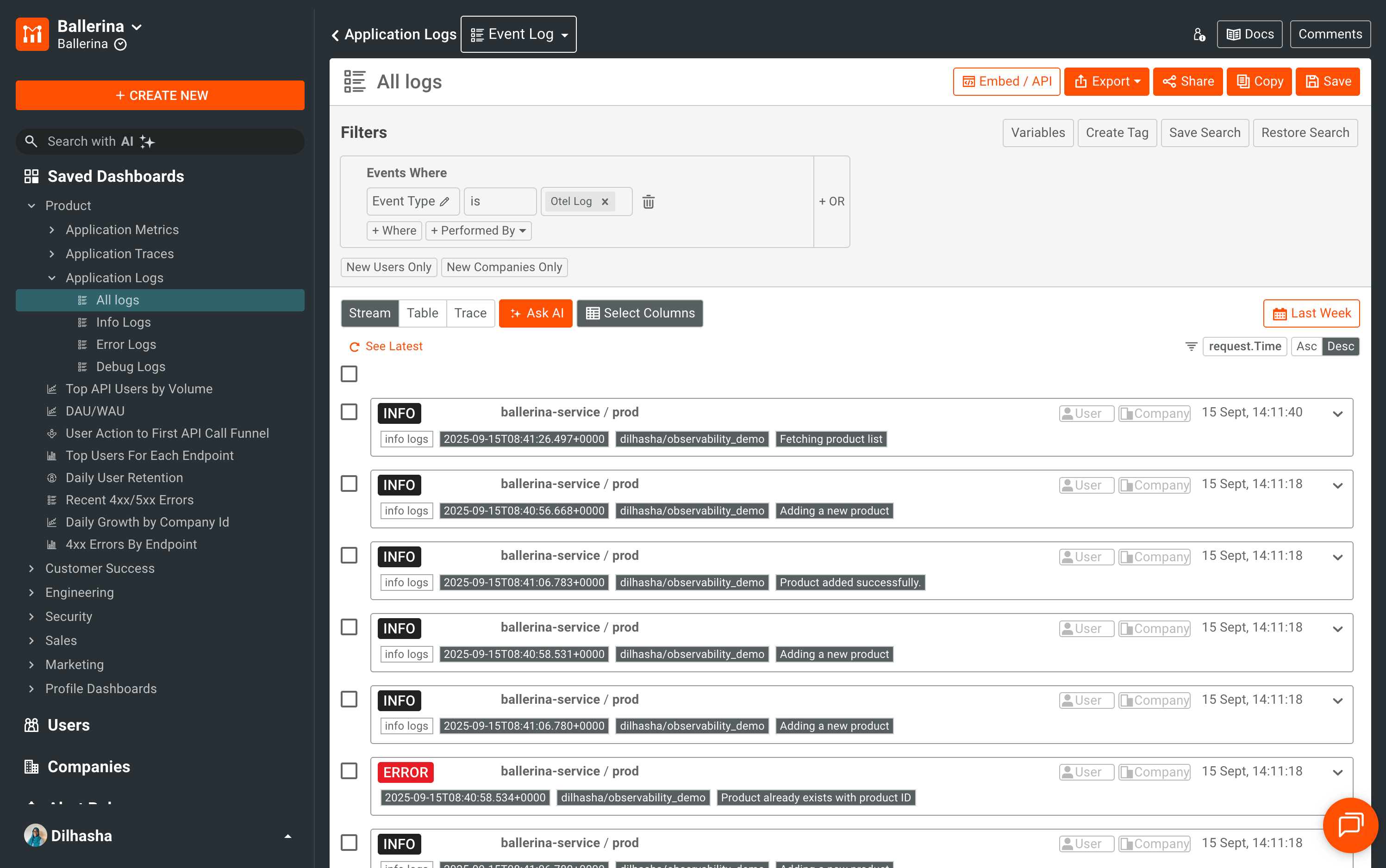
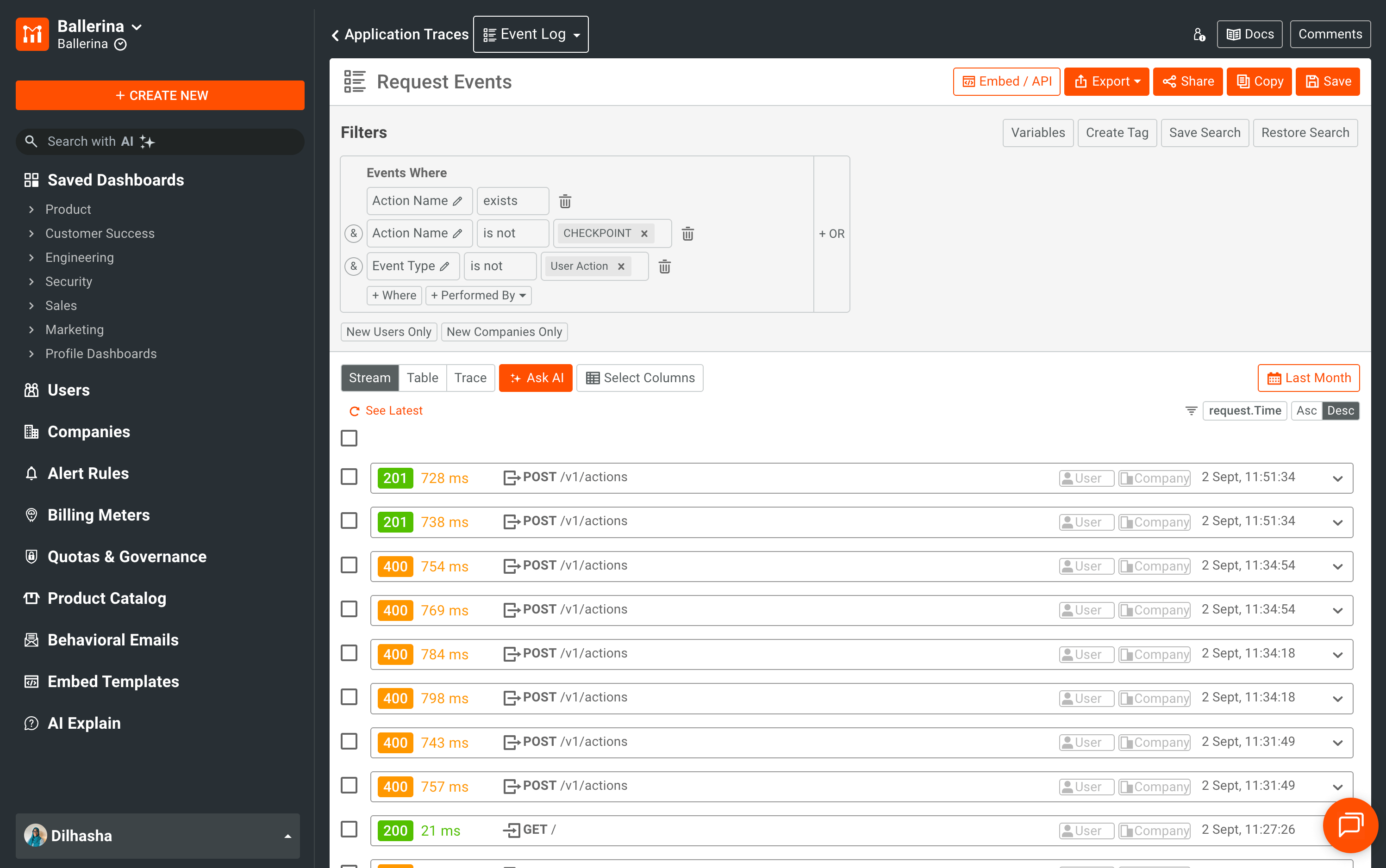
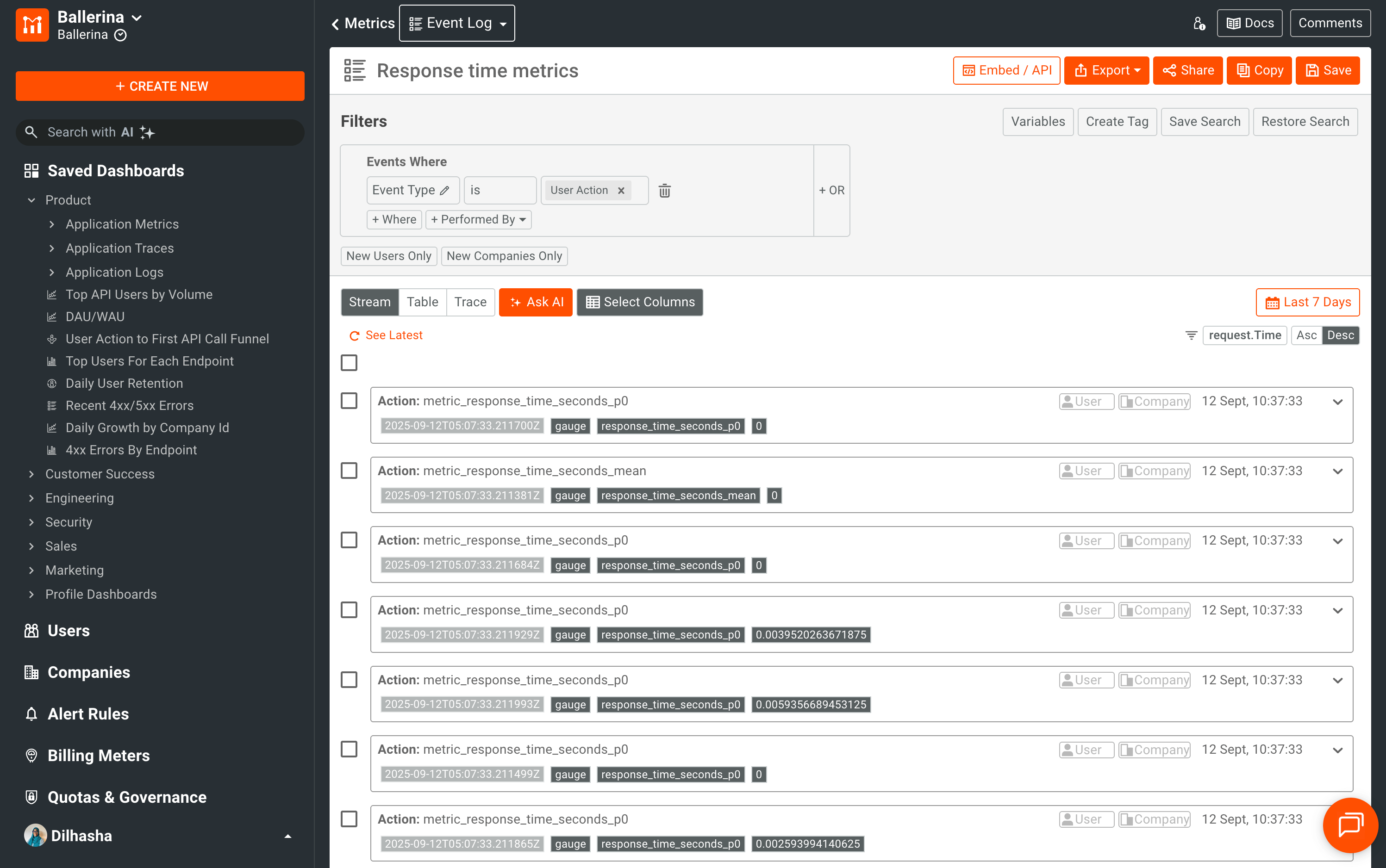
Traces, metrics, and logs are published to Moesif as events and can be explored in the Live Event Log for real-time monitoring. Moesif provides a set of pre-built dashboards that help visualize and analyze this data effectively. In addition, custom dashboards can be created to gain deeper, domain-specific insights.
The following sample dashboards illustrate how different types of observability data can be monitored and analyzed.
Traces Dashboard
Used to filter and view incoming requests. You can drill down into each request to track its related traces in detail.
Metrics Dashboard
Provides visibility into key performance indicators such as latency, throughput, and error rates.
Logs Dashboard
Displays log events captured from the application.