- Write a RESTful API with Ballerina
- Write a gRPC service with Ballerina
- Write a GraphQL API with Ballerina
- Work with data using queries in Ballerina
- Build a data service in Ballerina
- Build a Change Data Capture (CDC) service in Ballerina
- Work with Large Language Models (LLMs) using natural expressions
- Deploy Ballerina on Kubernetes
- Manage data persistence with bal persist
- Create your first connector with Ballerina
- Write a workflow with Ballerina
- Write a workflow with a human task
- Handle errors and replay failed activities in workflows
The Ballerina scan tool is a static code analysis tool that performs analysis on Ballerina projects and identifies potential code smells, bugs, and vulnerabilities without executing them.
Note: Ballerina scan is an experimental feature, and its rule set is small for two separate reasons. The tool itself is still growing, and the language already closes off several weakness classes that other static analysis tools must detect at scan time, because the compiler rejects them outright. See Language guarantees for what the compiler enforces.
Install the tool
Execute the command below to pull the scan tool from Ballerina Central.
$ bal tool pull scan
To verify the installation and check the version:
$ bal tool list
For more information about managing Ballerina tools, refer to the Ballerina CLI tool command documentation.
Command syntax
The Ballerina scan tool follows this general syntax:
$ bal scan [OPTIONS] [<workspace>|<package>|<source-file>]
Arguments
<workspace>: Analyzes each package in the specified workspace in dependency order<package>: Analyzes all Ballerina files in the specified package (optional, defaults to current directory)<source-file>: Analyzes a specific standalone Ballerina file (.balextension required)
Note: Analyzing individual Ballerina files that are part of a package is not supported. You must analyze the entire package or work with standalone files.
Available options
All options are optional. Rule filters and platforms can also be configured in a Scan.toml file. See Configure the scan with Scan.toml.
| Option | Description | Default |
|---|---|---|
--target-dir=<path> | Specify target directory for analysis reports (only for Ballerina projects) | The project's target directory |
--scan-report | Generate HTML report with detailed analysis results (only for Ballerina projects) | Disabled |
--format=<json|sarif> | Specify the format of the report | json |
--list-rules | List the rules available to the project, along with their kind and severity (only inside a project) | Disabled |
--include-rules=<rule1, ...> | Run analysis for specific rules only | All available rules are included |
--exclude-rules=<rule1, ...> | Exclude specific rules from analysis | No rules are excluded |
--platforms=<platform1, ...> | Define platforms for result reporting | Results are not reported to any platform |
Running analysis
You can analyze all Ballerina files in the current package by running the following command inside the package directory:
$ bal scan
This command will:
- Compile and analyze all
.balfiles in the current package - Print results to the console
- Save results in JSON format in the
target/scandirectory
If you want to analyze a specific package, you can provide the package name as an argument:
$ bal scan mypackage
If you want to analyze a specific standalone Ballerina file, you can provide the file name as an argument:
$ bal scan myfile.bal
When run on a workspace, the scan tool resolves the workspace dependencies and analyzes each package in dependency order.
Report generation
To generate a detailed HTML report of the analysis results, use the --scan-report option:
$ bal scan --scan-report
This will produce an HTML report and scan results in JSON format inside the target/report directory. The report is
not generated when results are reported to a platform. See Platform integration.
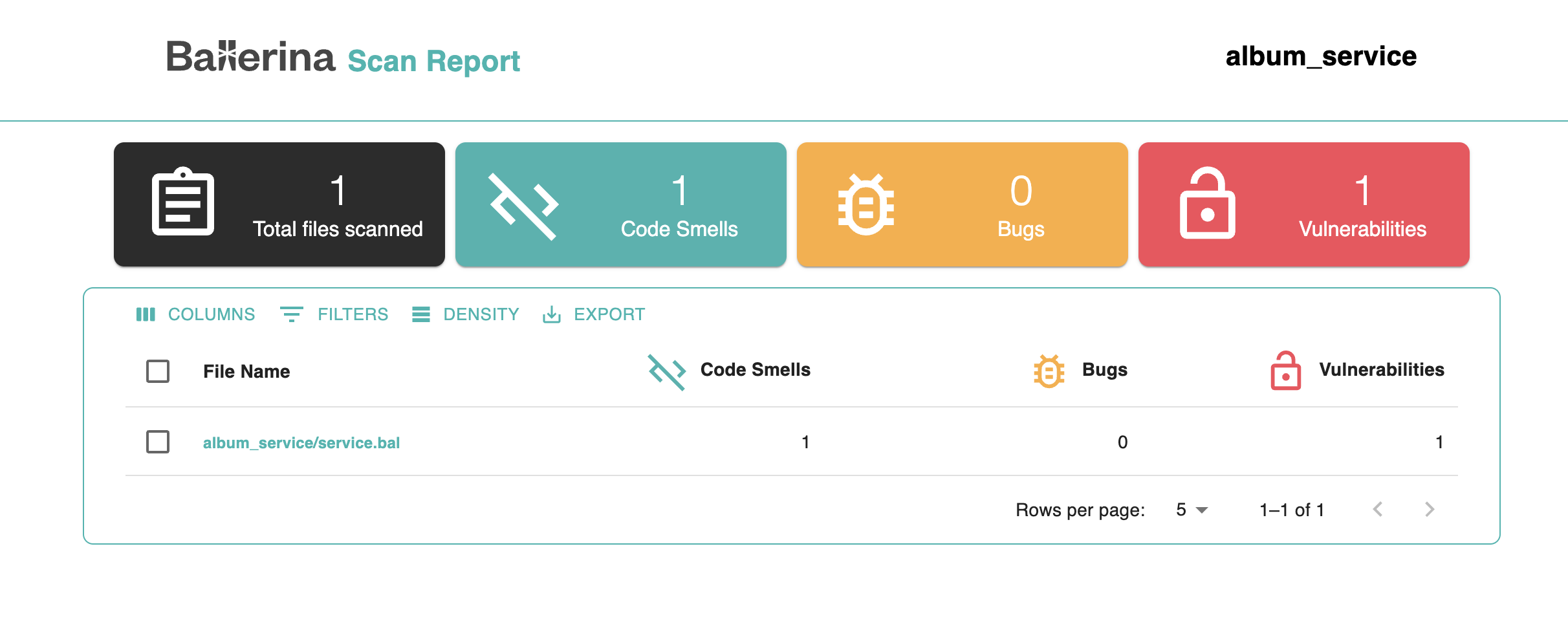
The HTML report includes a summary of the total number of files scanned and the number of code smells, bugs, and vulnerabilities found in each file. You can filter, search, and export the list of files.
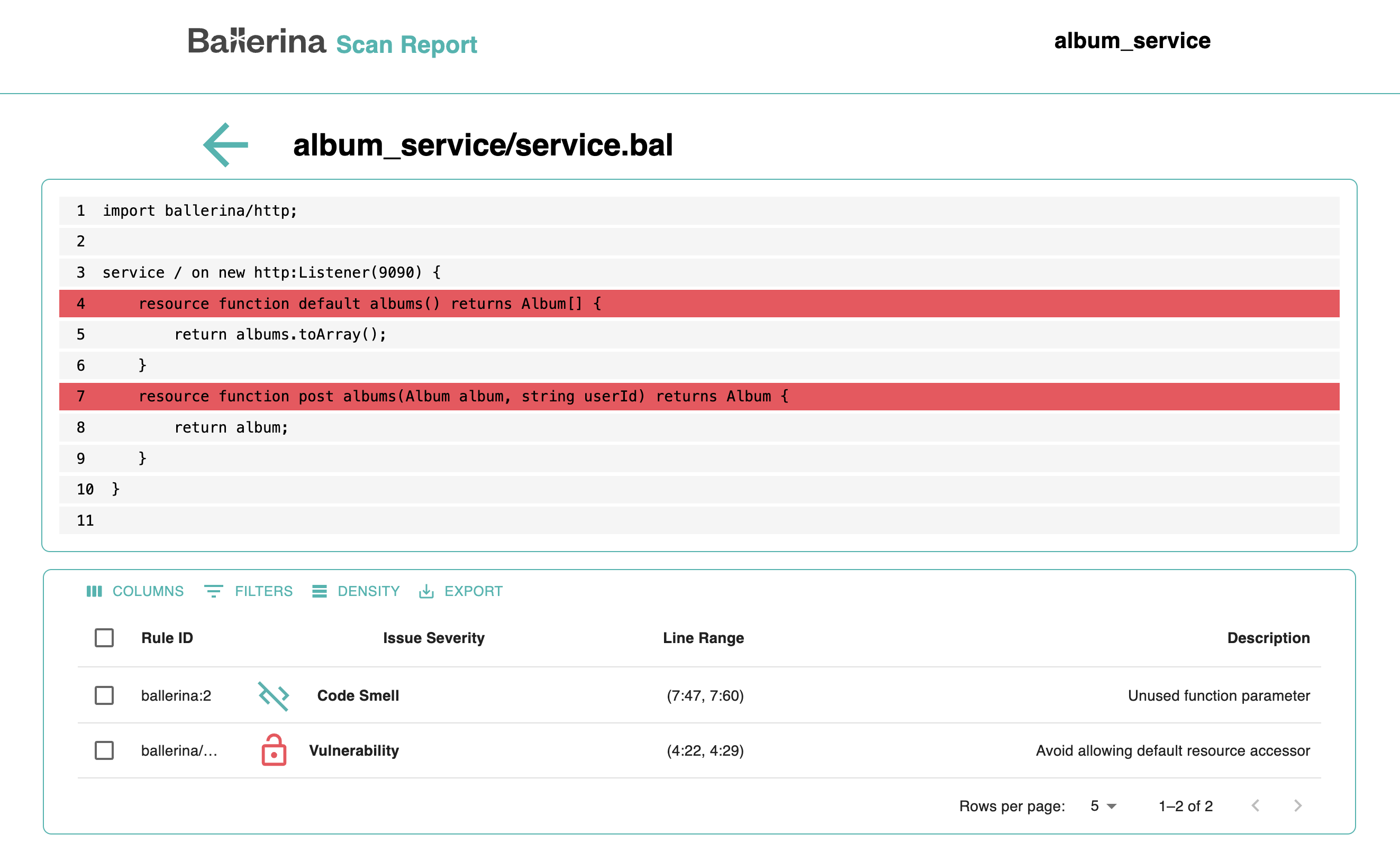
To investigate further, you can click on a file name to open the file view. This view shows the source of the file and highlights the exact lines where problems were detected. Hover over a highlight to see a summary of the issue, or click it to see the full details.
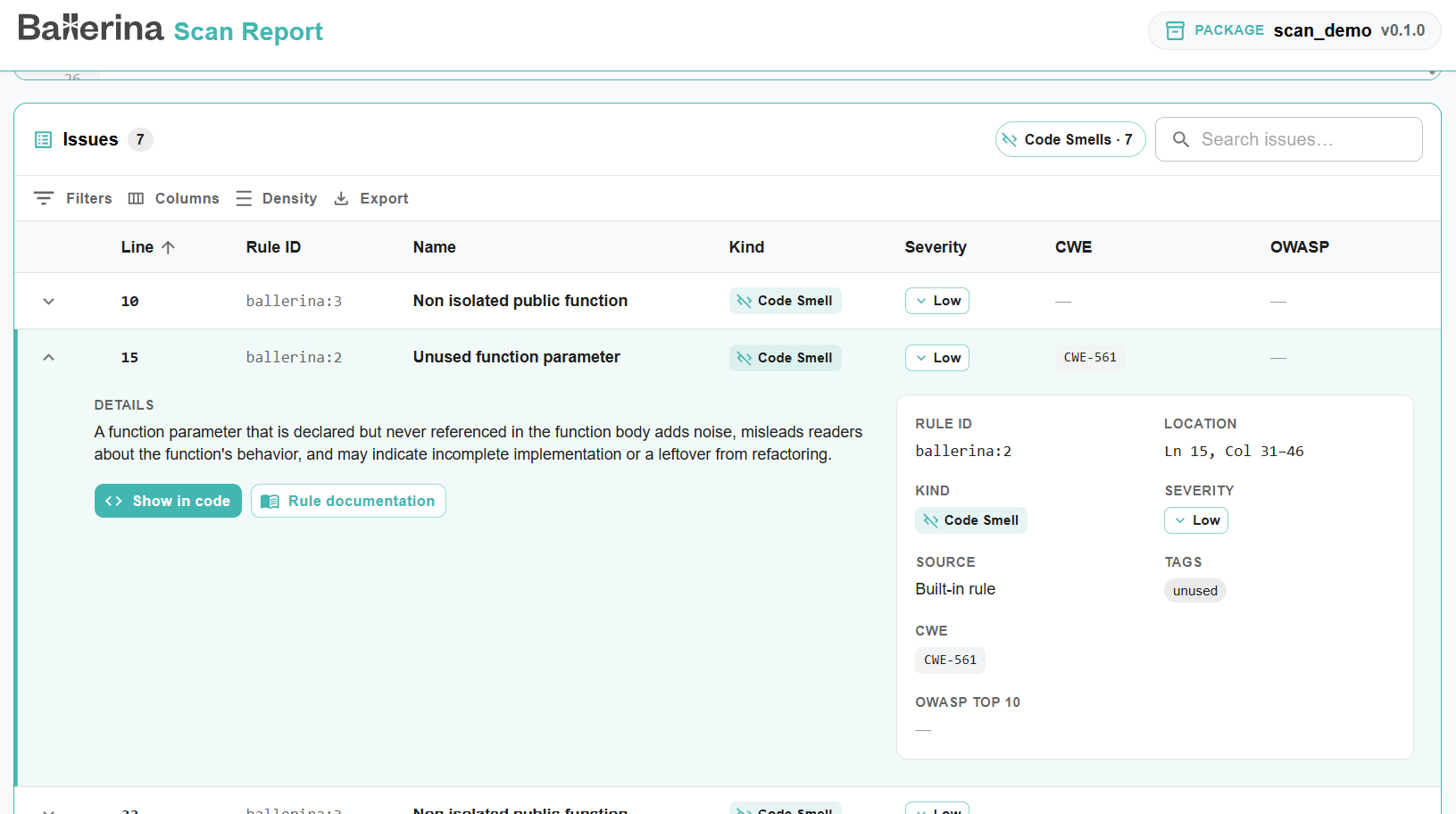
The issues found in the file are listed in a table with the line, rule ID, name, kind, severity, CWE, and OWASP Top 10 category of each issue. Expand an issue to see its description and the full rule details, such as its location, source, and tags. From there, you can jump to the issue in the source using Show in code, or open the rule's documentation using Rule documentation.
Custom target directory
You can specify a custom target directory for the analysis results using the --target-dir option.
This is useful if you want to store the results in a specific location or if you are working with multiple projects.
$ bal scan --target-dir="path/to/your/target/directory"
Report formats
By default, the scan tool generates reports in JSON format.
However, you can specify the report format using the --format option.
The available formats are json and sarif. The json format is the default, while sarif is a
standardized format for static analysis results.
In the json format, each finding is reported with its location, the details of the rule that raised it, and other
useful information:
[ { "location": { "filePath": "main.bal", "startLine": 22, "endLine": 22, "startColumn": 16, "endColumn": 43, "startOffset": 875, "length": 27, "snippet": "checkpanic parseCount(\"12\")" }, "rule": { "id": "ballerina:1", "numericId": 1, "name": "Avoid checkpanic", "description": "Using `checkpanic` lets an unhandled error panic and crash the program instead of being handled.", "details": "The `checkpanic` expression causes the program to panic and terminate abruptly when the checked expression evaluates to an error, instead of allowing the error to be handled. Prefer `check` with explicit error handling so callers can recover instead of crashing.", "helpUri": "https://ballerina.io/learn/scan-rules/#avoid-checkpanic", "severity": "LOW", "tags": [ "error-handling" ], "standards": { "cwe": [ 248, 636 ], "owasp": [ { "year": 2025, "categories": [ 10 ] } ] }, "ruleKind": "CODE_SMELL" }, "source": "BUILT_IN", "fileName": "main.bal", "filePath": "/home/user/bal-scan-demo/main.bal" } ]
To generate a report in the sarif format, use the following command:
$ bal scan --format=sarif
List available rules
To view all available rules for your project, you can use the --list-rules option:
$ bal scan --list-rules
This will display the rules available to your project, along with their kind and severity, which you can include or exclude in future scans. The list contains the core rules and the rules contributed by the project's dependencies (library tools and static code analyzer plugins).
The output will look something like this:
RuleID       | Rule Kind     | Severity | Rule Description
-------------|---------------|----------|-------------------------------------------------
ballerina:1  | CODE_SMELL    | LOW      | Avoid checkpanic
ballerina:2  | CODE_SMELL    | LOW      | Unused function parameter
...
ballerina:13 | VULNERABILITY | HIGH     | Hard-coded secrets are security-sensitive
ballerina:14 | VULNERABILITY | MEDIUM   | Non configurable secrets are security-sensitive
...
Note: The
--list-rulesoption only works inside a Ballerina project. The displayed rules are project-specific and determined by your project's dependencies.
For detailed explanations of each rule, with noncompliant and compliant code examples, see Scan rules.
Rule severity
Every rule has a severity that indicates how urgently a reported issue should be addressed, and how it can affect
development and deployment if left unresolved:
| Severity | Meaning | Impact |
|---|---|---|
BLOCKER | A critical issue that is very likely to cause application failure or a security breach. | Should block merging or deployment until fixed. |
HIGH | A serious issue likely to cause incorrect behavior or expose the application to exploitation. | Should be fixed before deployment. |
MEDIUM | An issue that affects reliability, maintainability, or security to a moderate degree. | Should be scheduled and fixed soon, does not need to block deployment on its own. |
LOW | A minor issue such as a code smell that affects readability or maintainability. | Safe to defer, but worth cleaning up over time. |
INFO | An informational finding with no material severity. | Does not require action; useful for awareness. |
Where applicable, a rule is also mapped to its relevant CWE and OWASP Top 10 coverage. See Security standards mapping.
Include specific rules
You can run the analysis for specific rules by using the --include-rules option.
This allows you to focus on particular areas of your codebase that you want to analyze.
$ bal scan --include-rules="ballerina:1"
You can also include multiple rules by listing them as a comma-separated string:
$ bal scan --include-rules="ballerina:1, ballerina/io:2"
Exclude specific rules
You can exclude specific rules from the analysis using the --exclude-rules option.
This is useful if you want to ignore certain rules that are not relevant to your project or if you have already
addressed them.
$ bal scan --exclude-rules="ballerina:1"
To exclude multiple rules, provide them as a comma-separated list:
$ bal scan --exclude-rules="ballerina:1, ballerina/io:2"
Configure the scan with Scan.toml
Rule filters, platform plugins, and static code analyzer plugins can also be configured in a Scan.toml file (only for
Ballerina projects). The scan tool picks up a Scan.toml in the package root, or the file (local path or URL) specified
in Ballerina.toml:
[scan] configPath = "path/to/Scan.toml"
A sample Scan.toml:
# Rules to include or exclude in the analysis (same as --include-rules and --exclude-rules) [rule] include = ["ballerina:1", "ballerina/io:2"] # exclude = ["ballerina:1"] # Platform plugins to report results to (enables reporting; required for --platforms) [[platform]] name = "sonarqube" path = "path/to/sonar_platform_plugin.jar"
Rules specified in Scan.toml are combined with those passed via --include-rules and --exclude-rules. Including and
excluding rules at the same time is not allowed.
Each [[platform]] entry requires both a name and a path. The path must point to the platform plugin JAR, either
as a local file path (resolved relative to the current working directory) or as a URL to download it from.
See Scan file configurations for all available options.
Platform integration
You can report the analysis results to platforms such as SonarQube using the --platforms option.
$ bal scan --platforms="sonarqube"
The --platforms option accepts a comma-separated list, so results can be reported to several platforms in a single scan:
$ bal scan --platforms="sonarqube, <another-platform>"
Note:
sonarqubeis currently the only platform plugin available, and its path must be declared in a[[platform]]entry inScan.toml. If you pass a name that has no corresponding platform plugin, the scan tool reports that platform as unavailable.
A platform declared in Scan.toml is reported to automatically, and --platforms can only reference platforms declared
there. When results are reported to a platform, they are not printed to the console or saved to the target directory.
This also applies to --scan-report: if it is used together with --platforms (or with a platform declared in
Scan.toml), the option is ignored and neither the HTML report nor the JSON results are saved in target/report.
Publish static code analysis reports to SonarQube
SonarQube is a popular open-source platform for continuous inspection of code quality. It provides static code analysis, code coverage, and other features to help developers maintain clean, maintainable codebases. The Ballerina scan tool can be integrated with SonarQube to publish static code analysis reports, enabling seamless integration into your CI/CD pipelines.
This guide walks you through the process of configuring SonarQube and publishing Ballerina static code analysis reports.
Prerequisites
- SonarQube 9.9 LTA Community Edition installed.
- SonarScanner CLI 4.8.0 or later installed, and added to your system
PATH. - SonarQube Ballerina plugin, and SonarQube platform plugin downloaded.
Configure the SonarQube server
-
Install Java 17 in your machine.
-
If Java 17 is not the default Java installation, override it.
For Unix/macOS:
export SONAR_JAVA_PATH="path/to/java17_home/bin/java"For Windows:
setx SONAR_JAVA_PATH="path\to\java17_home\bin\java"
-
-
Setup SonarQube 9.9 LTA
- Download SonarQube 9.9 LTA from here.
- Extract the downloaded zip file.
-
Add the SonarQube Ballerina plugin.
- Download the latest Ballerina SonarQube plugin JAR.
- Place the JAR file into the
extensions/plugins/directory of your SonarQube installation.
-
Navigate to the appropriate
bin/<OS>/directory and run the SonarQube server.$ ./sonar.sh startYou can access the SonarQube dashboard at http://localhost:9000 once the server is up.
-
Create a new project in SonarQube.
- Log in to the SonarQube dashboard.
- Click on
Create Project. - Follow the prompts to set up your project. Note the project key you provide, as it is required when configuring the Ballerina project.
- When prompted to provide a token, generate a token as follows and use it in the prompt.
- Navigate to
My Account->Securityin the SonarQube UI. - Enter a name for the token and click
Generate. - Copy the generated token and store it securely, as it is not shown again. This token is also required when publishing reports to SonarQube.
- Navigate to
-
Install and configure SonarScanner CLI.
- Download SonarScanner CLI from here.
- Add it to your system
PATH. - Ensure
sonar.host.urlis set correctly (either via a properties file or CLI parameter).
Configure the Ballerina project
-
Download the SonarQube platform plugin.
-
Create a
sonar-project.propertiesfile at the root of your Ballerina project with the following content.sonar.projectKey=<your-project-key> sonar.projectName=<your-project-name> -
Create a Scan.toml at the root of your Ballerina project. Add additional SonarQube configurations by referencing the
sonar-project.propertiesfile.[[platform]] name = "sonarqube" path = "<path-to-sonar-platform-plugin>" sonarProjectPropertiesPath = "<path-to-sonar-project.properties>"
Publish reports to SonarQube
-
Link a ballerina source repo to the SonarQube server from a DevOps platform or manually.
-
Authenticate using a token.
-
Set the token generated when creating the SonarQube project as an environment variable.
For Unix/macOS:
$ export SONAR_TOKEN=<your-token>For Windows:
$ set SONAR_TOKEN=<your-token>
-
-
Run the scan tool to publish the reports to SonarQube.
$ bal scan
After the scan
- Once the scan completes, navigate to your project in the SonarQube dashboard.
- View issues, vulnerabilities, code smells, and other static analysis results directly from the SonarQube UI.